
Smart Scribe
Getting started
Smart Scribe allows you to record audio and get real-time transcriptions.
Start transcribing
Follow these steps to begin a transcription session:
- Navigate to the Smart Scribe screen.
- Press the Record button to start capturing audio.
- Record the audio you want to transcribe.
- When finished, press Stop and then Save to store your recording.
Do not close the app while the recording is uploading. Wait for the upload to complete to ensure your session is saved.
File upload
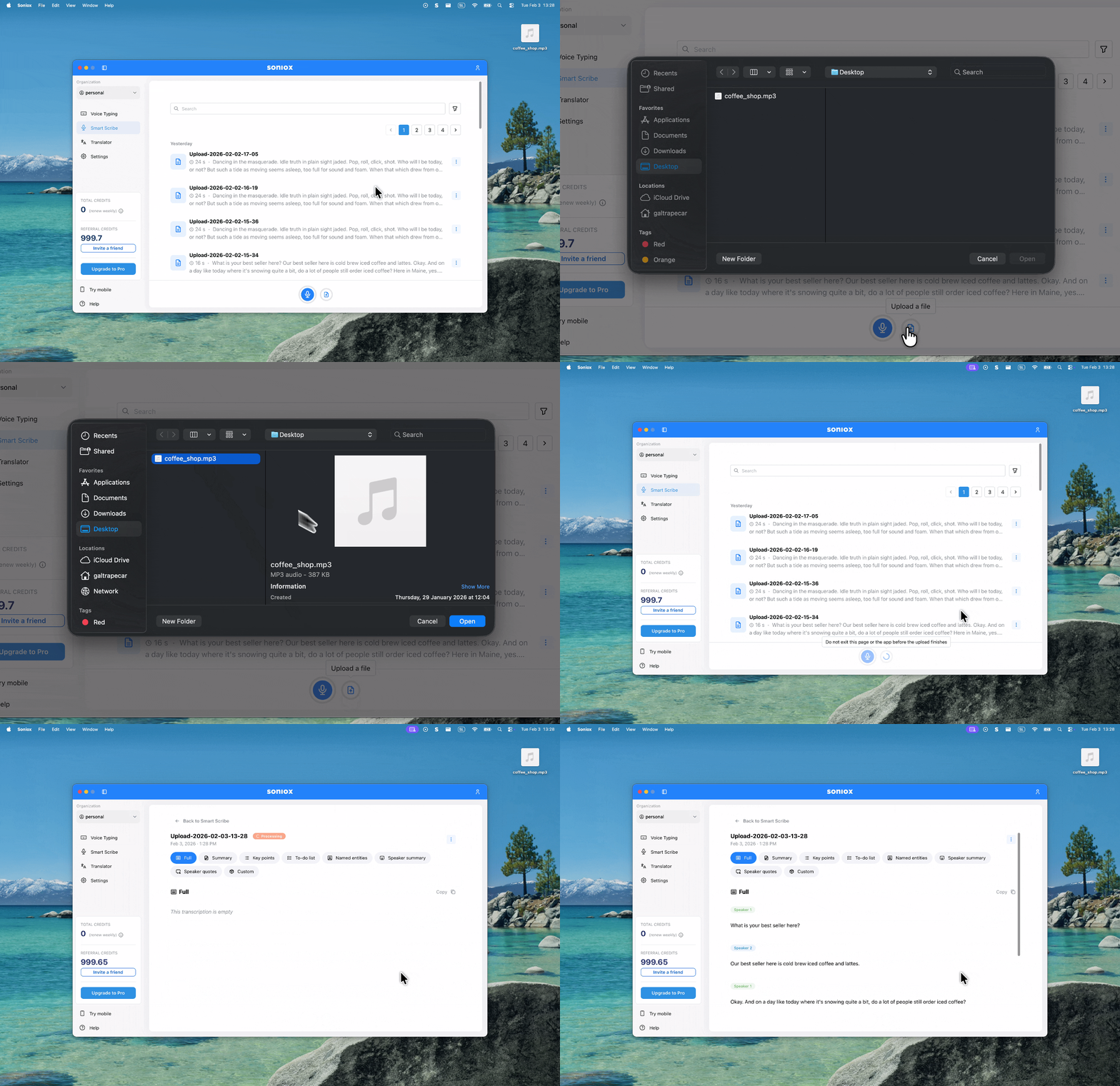
Instead of recording, you can upload an existing audio file for transcription.
- Press the Upload button and select your audio file.
- Wait for the file to upload and process.
History
All your saved transcription sessions are listed directly on the Smart Scribe page. From here you can:
- View past transcriptions with the transcribed text
- Use AI actions to summarize or extract key points
- Delete sessions you no longer need
Your history syncs across all your devices. Sessions saved on the desktop app will also appear in the mobile app and web app, and vice versa.