
Business billing
Overview
Soniox offers two subscription types:
- Personal: for individual see: Plans
- Organization: for teams and companies
Managing your organization's subscription
Only organization admins can manage subscriptions. Open the Billing page from your organization's settings in the web app.
Creator seats
Your subscription cost depends on Creator seats:
- Creator (Paid): Can record or upload new transcriptions, run AI actions (summaries, to-do lists), create projects, and manage transcriptions.
- Viewer (Free): Can view, comment, and share transcriptions in projects. Cannot create new content.
You can add unlimited viewers for free. You pay only for creator seats. See Organization management for details.
Purchasing a subscription
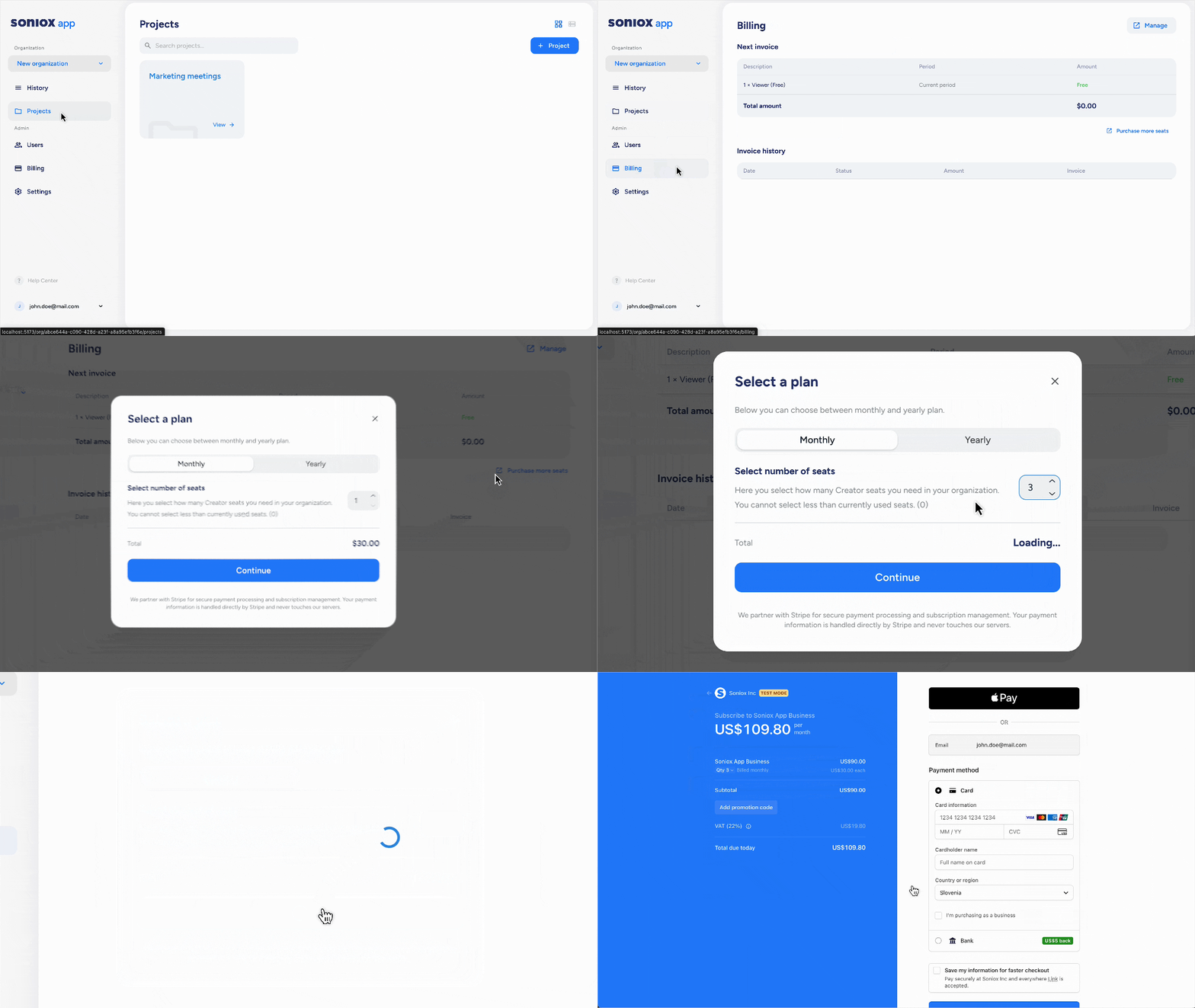
To buy a subscription:
- Open the Billing page from your organization's settings.
- Click Purchase more seats.
- Choose the number of Creator seats and select monthly or yearly billing. Preview the cost.
- Click Subscribe to go to Stripe’s secure payment portal.
- Enter your payment and company details.
After payment, your subscription activates. You can then assign creator seats.
Adding a VAT ID
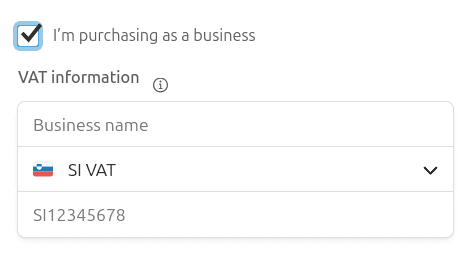
At the bottom of Stripe’s payment form, select "I'm purchasing as a business". Enter your company’s VAT ID here.
Changing the number of seats
Adding seats
- Click Purchase more seats.
- Select the total number of seats you want.
- Confirm payment on Stripe. You pay a prorated amount for the remaining period.
- New seats are available immediately.
Removing seats
- Reduce the number of creator seats by changing a user from Creator to Viewer or removing them from the organization.
- At the next billing period, your plan adjusts to the actual number of creator seats. You pay only for active seats.
If you pay for 10 seats but only have 7 creators, your plan will renew for 7 seats next billing cycle.
Changing the billing cycle
- Monthly to yearly: upgrade anytime. If the number of yearly seats is equal to or greater than your current seats, you pay a prorated amount and your annual cycle starts immediately. If the number of yearly seats is less than your current seats, the yearly plan begins after the current month ends.
- Yearly to monthly: takes effect at the end of the current annual period. The plan switches to monthly only if the number of monthly seats is equal to or less than your current creator seats.
Updating payment Method
Click Manage subscription on the Billing page to update your card and billing info in Stripe.
Viewing invoices
View and download invoices on the Billing page. For full history, use the Stripe portal via Manage subscription.
Canceling your subscription
Admins can cancel the plan at any time in the app.
- Subscription stays active until the end of the paid period.
- You can resume the subscription at any time before the period ends.
- After that, all creators become viewers.
- Your data stays safe. Re-subscribe anytime to restore creator seats.
Invoice billing
For larger organizations, we offer a plan with invoice payments and dedicated support:
- Payment: Monthly or yearly invoices with 30-day terms.
- Flexible seats: Add or remove seats; costs reflect on the next invoice.
- Billing cycle: Starts on the 1st of each month. First invoice is prorated.
Contact [email protected] to learn more or start this plan.