
Getting started
Welcome to the Soniox Desktop App. The desktop app allows you to type with your voice in any application on your desktop computer.
Installing the app
You can download the app for free for Windows and macOS. Download the installer from our website to get started.
Open the app and follow the quick onboarding. It will guide you through permissions setup and usage. The Free plan gives you 10 credits each week. The credits are shared between the mobile, web and desktop apps.
Navigating the app
The app has four tabs:
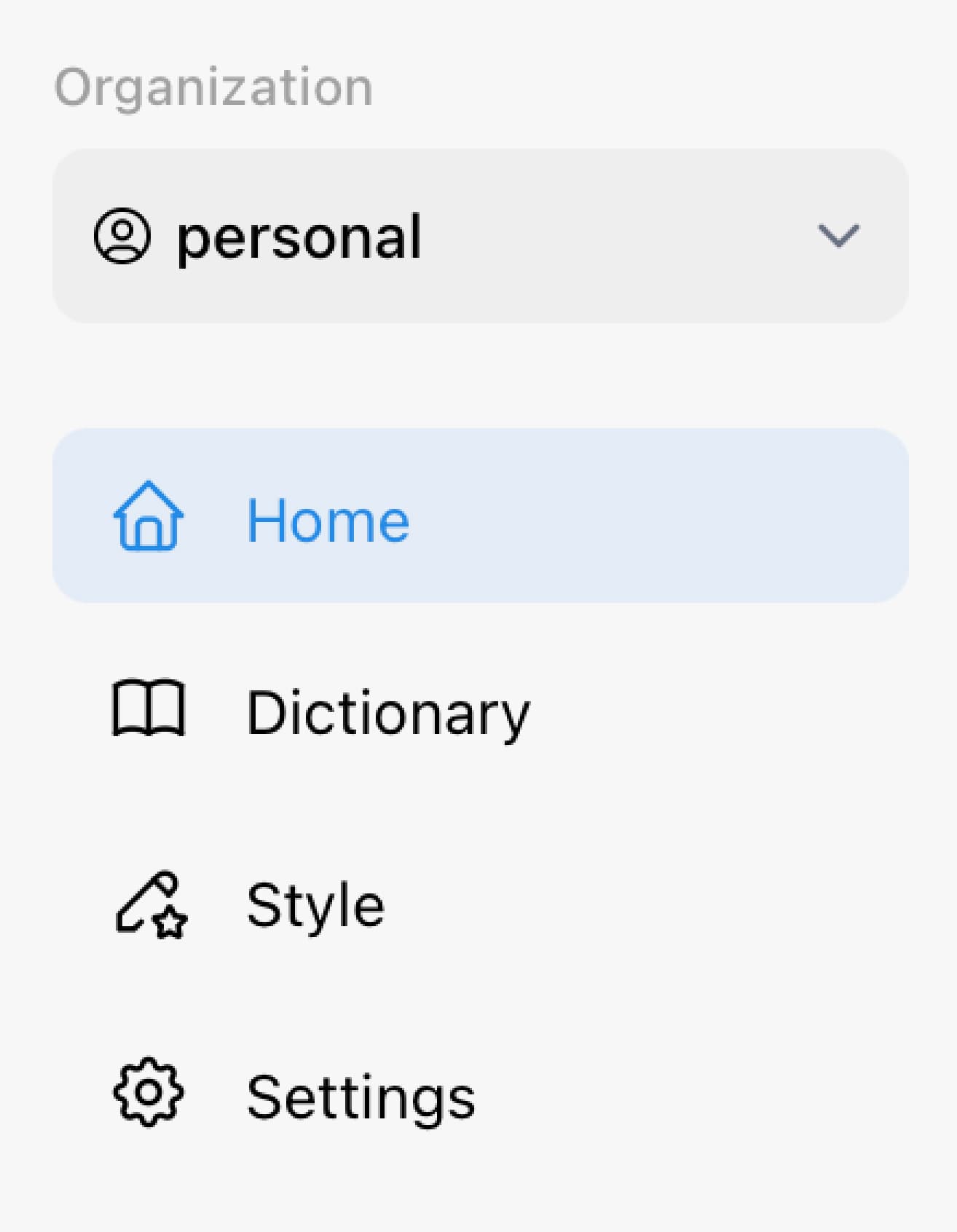
- Home: See all locally saved dictations.
- Dictionary: Add special terms and context to help the AI model recognize words.
- Style: Manage text restyling before insertion.
- Settings: Manage desktop app settings.
Start voice typing
Let's start using the app.
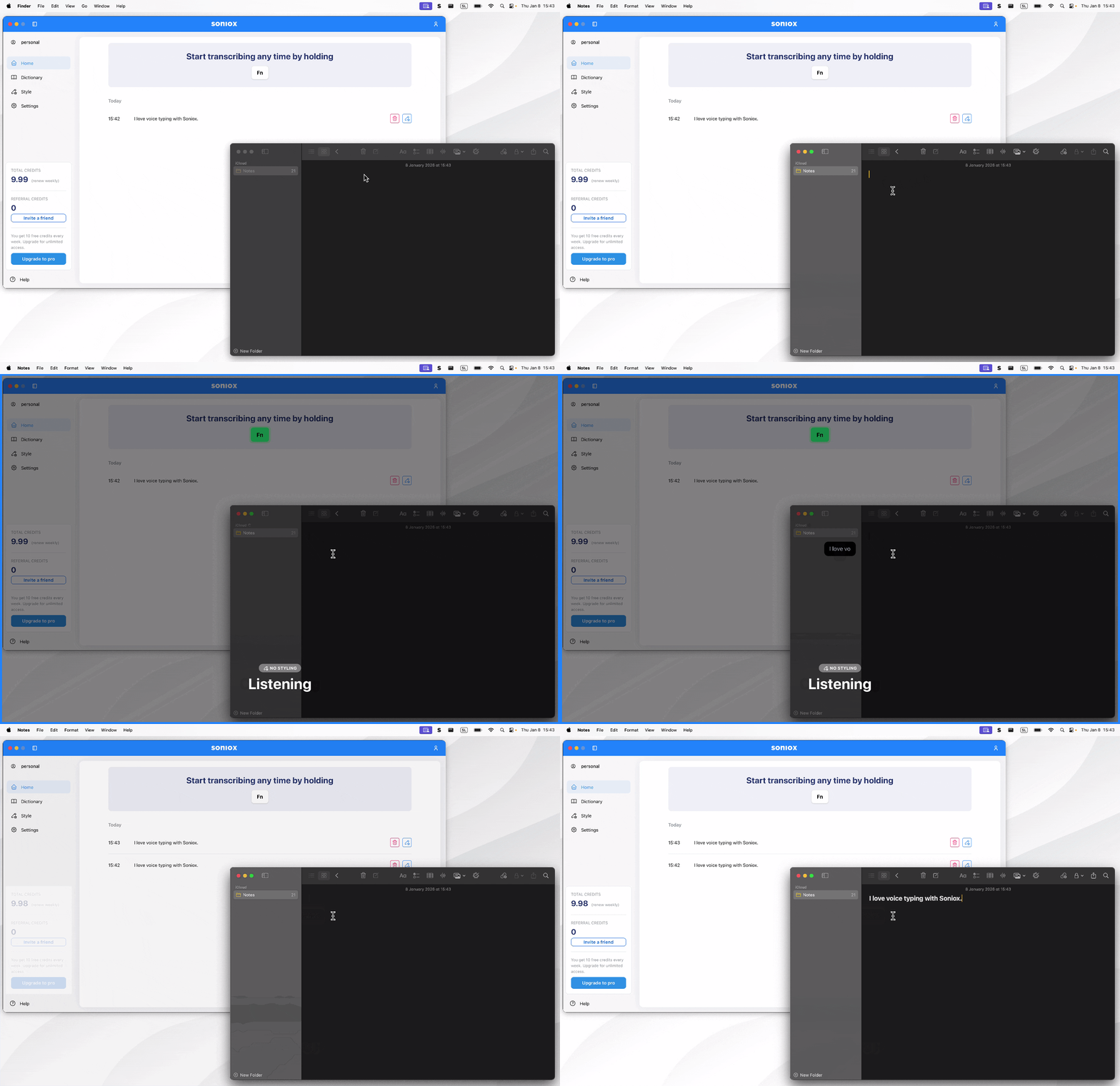
- Go to Home, then press and hold the shortcut key to confirm it's working.
If nothing happens when you press the shortcut key, you might be missing required permissions. Refer to the troubleshooting guide.
-
Great! Now to get voice typing going, go to any text input in any app and hold the shortcut key again.
-
An overlay should pop up. Wait for the status to say Listening before you speak.
-
Let go, and text will be inserted in the selected text box after processing.
-
Your dictation will be saved, and you can find it on the Home screen.