Using the Desktop App
Styles
Styles transform your text to better fit the environment you're working in.
How to use
To use a style, select it from the available options. After transcription, the text will be transformed based on the selected style.
Styling is an AI action and uses your credits. If you are on the Pro plan, styling is unlimited.
Default Styles
There are two default styles.
- Formal is designed for professional environments and replaces certain words and phrases with work-appropriate ones.
- Casual is designed for relaxed, informal environments.
Custom Styles
You can create custom styles to fit any use case.
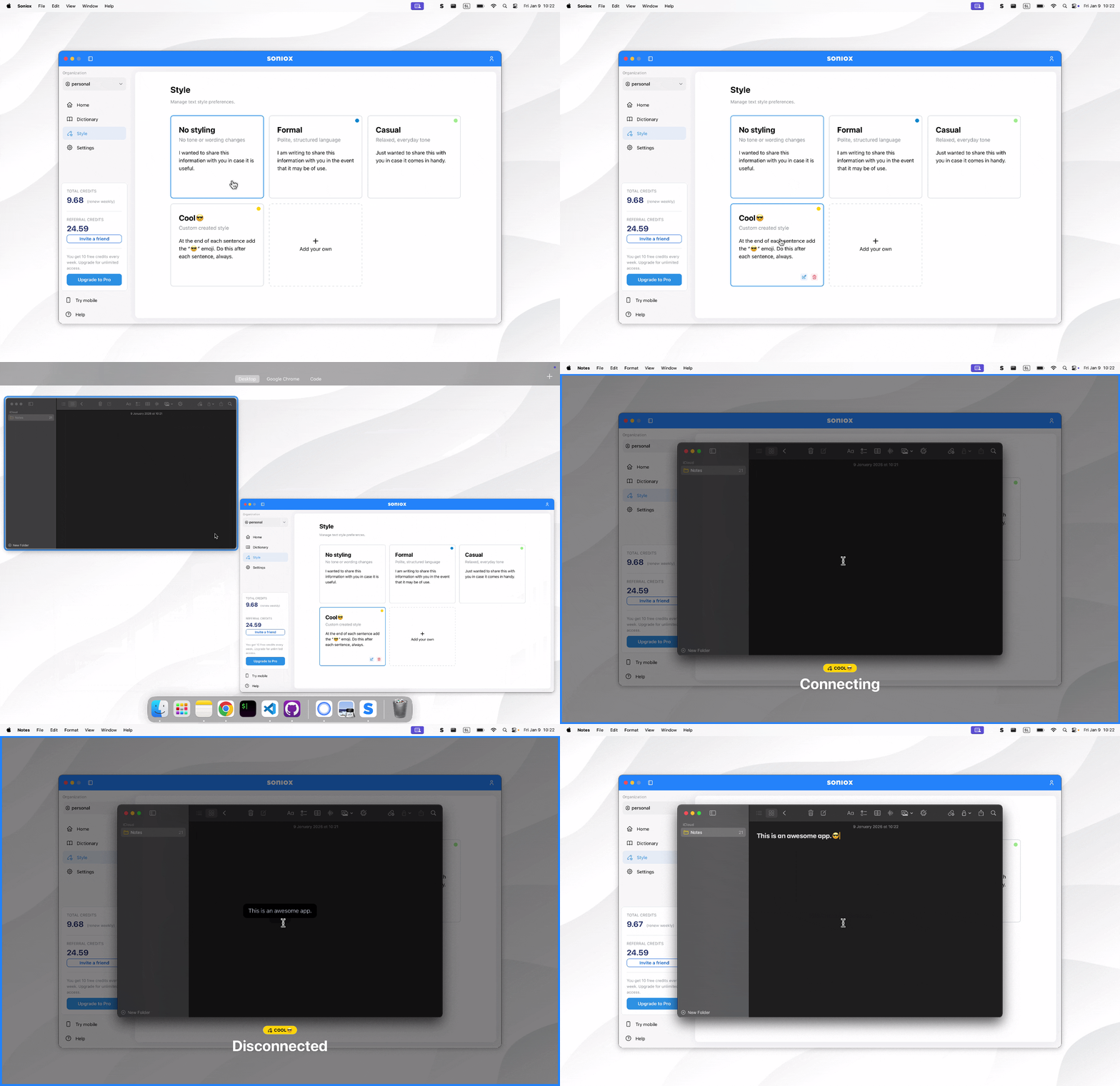
- Select "Add your own".
- Add a description.
For example:
"When I say 'open bracket' and 'close bracket,' replace them with '(' and ')'."
or something fun like:
"End all sentences with a cheerful emoji that fits the context."
- Enter a name.
- Choose a color to make it easily identifiable.
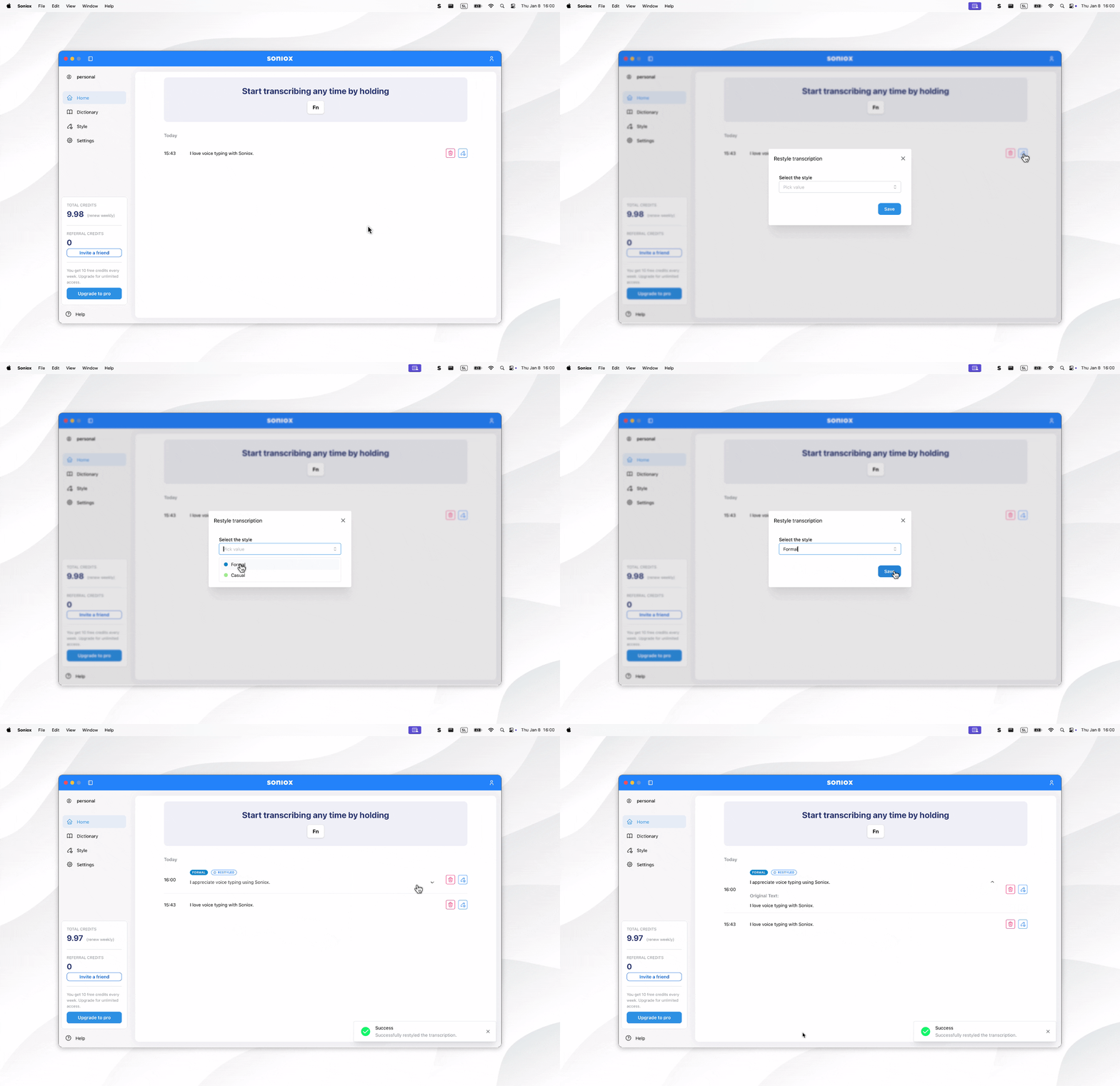
Restyling a dictation
You can change the style of a saved dictation by navigating to the Home page and clicking the restyle button next to the dictation.