
Keyboard extension
The Soniox keyboard lets you use your voice everywhere on iOS. Record and dictate text directly from any app
The Soniox keyboard works only on iOS. Make sure your app is up to date
Enabling the keyboard
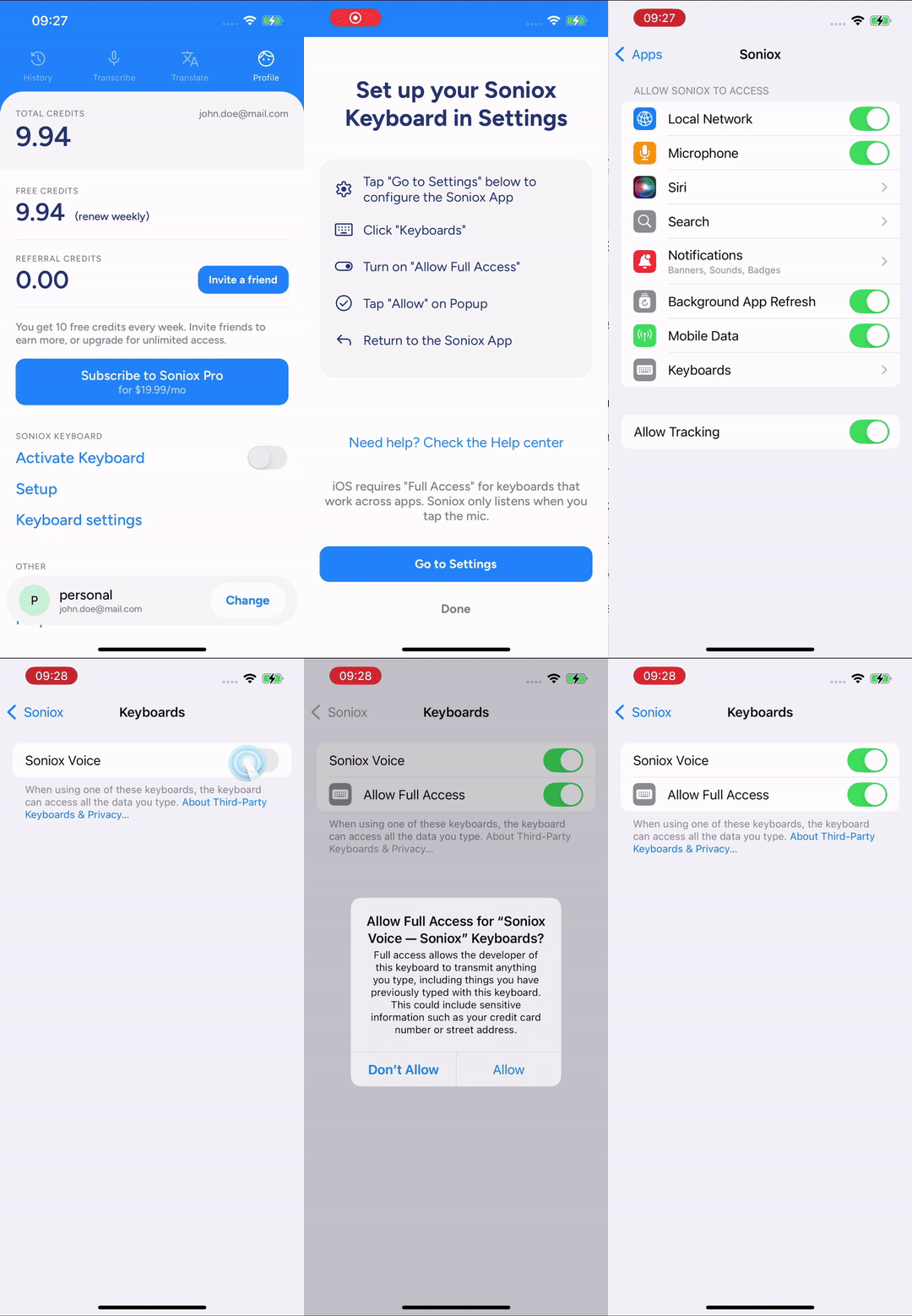
To enable the Soniox keyboard:
- Open Settings on your iOS device
- Go to Apps > Soniox > Keyboards
- Enable Soniox Voice keyboard
- Allow Full Access so the keyboard can use your microphone and open a connection for dictation and text styling
Switch to the Soniox keyboard in any app using the globe icon (language)
Full Access is required for dictation and text styling
Using the keyboard
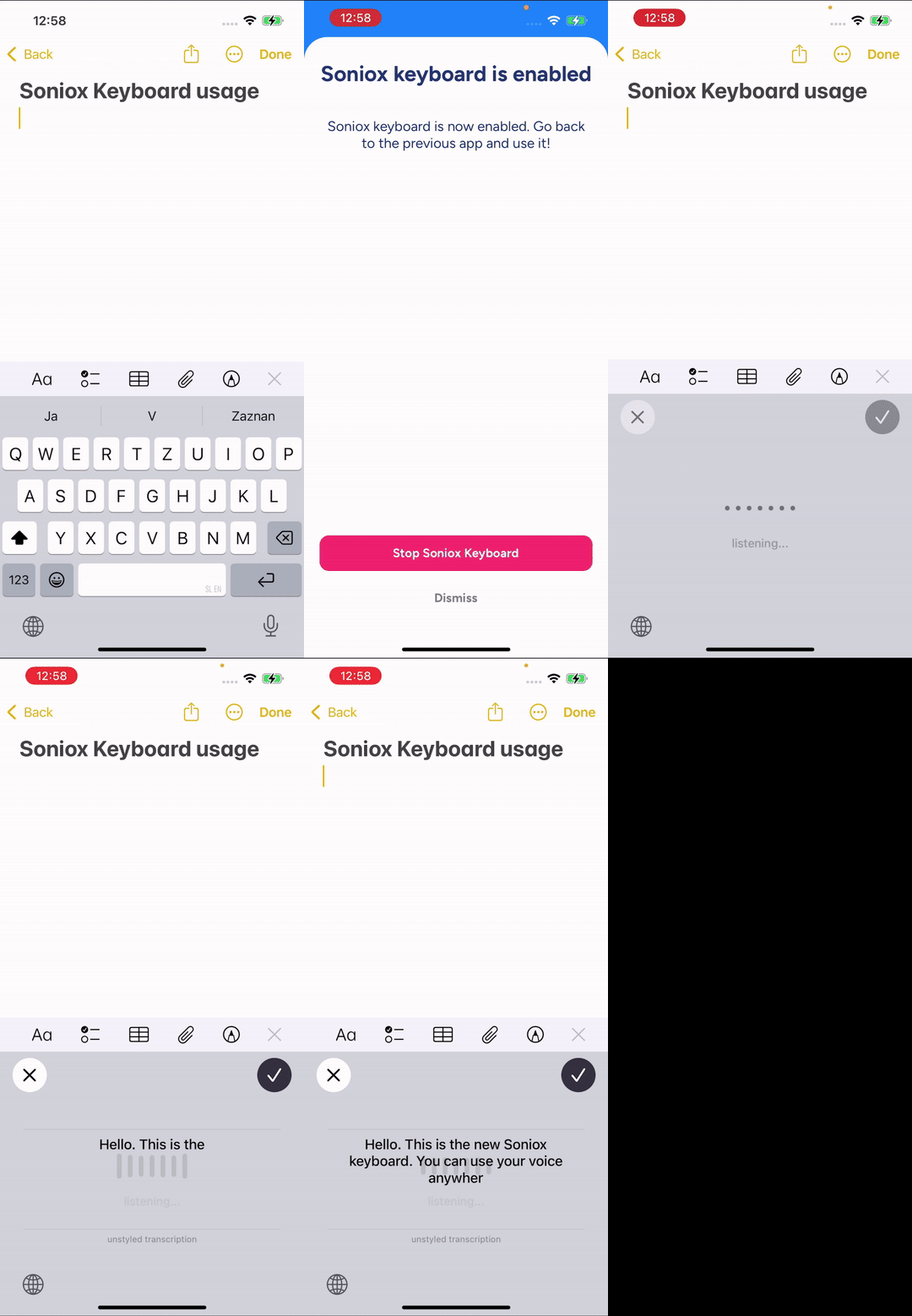
- Open any app with a text field
- Switch to the Soniox keyboard using the globe icon (language)
- Tap the microphone icon to record
- Apply text styling via the settings to change your text tone: formal, casual, or disabled
The keyboard may not work in some secure fields or system input areas. Use a standard text field for dictation
Text styling
Text styling changes the tone of your dictation:
- Formal: Makes text clear, professional, and structured
- Casual: Gives text a relaxed, friendly tone
- Disabled: Leaves text unchanged
Enable text styling in the keyboard settings. Access them via the app (Profile → Keyboard Settings) or from the keyboard itself by clicking the icon
Data privacy
The keyboard sends audio only when you tap the microphone icon. We do not store any keyboard audio on your device or in the cloud.