
Using the Mobile App
How to translate
Soniox can translate speech in real-time. You can follow a conversation in your own language or take part in a bilingual discussion.
- Translate to: translate any speech into one language.
- Translate between: translate back and forth between two languages.
Start a translation
- Open the app and go to the Translate tab (translate).
- Choose Translate to or Translate between.
- Pick the language or languages you want to use.
- (Optional) Tap settings Settings before you start to improve accuracy. See Improving accuracy for details.
- Tap mic Start.
Translate to
Use this mode when you want to read everything in one language.
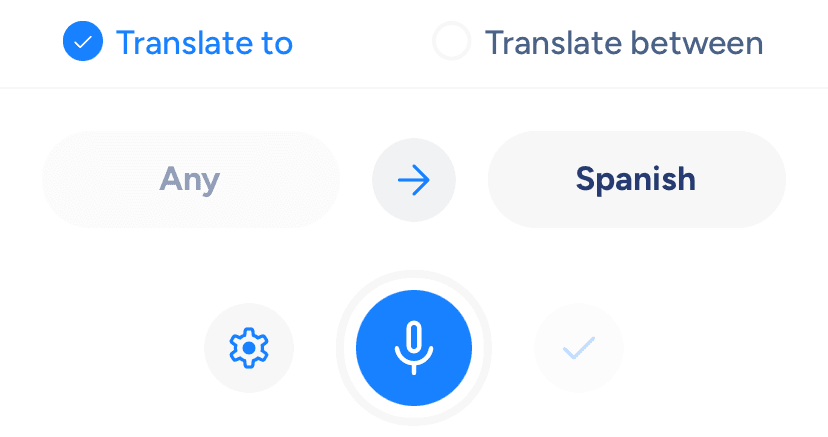
Soniox shows:
- The original transcription.
- A real-time translation into the language you selected.
This works well for lectures, meetings, or videos in languages you don’t understand.
Translate between
Use this mode when two people speak different languages and want to communicate.
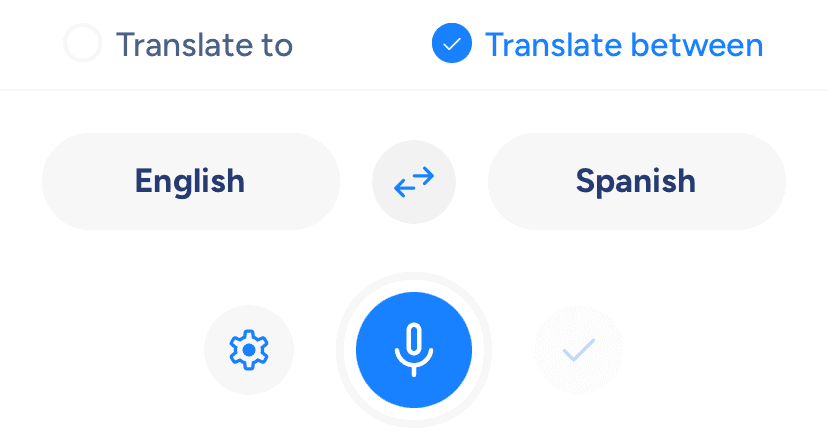
How it works:
- You pick two languages.
- The screen shows two boxes, one for each language.
- Each box shows speech in that language.
- It also shows translated speech from the other language.
- Speech in any other language appears in both boxes.
If two people sit across from each other, tap add in the top-right and choose text_rotate_up Rotate text. This turns the top box so the person on the other side can read it.
Saving your translation
When you finish, you can save or discard the translation. Saving stores the audio on your device and adds translation to your account. For details, see: Save or discard your recording.