
Using the Mobile App
Getting started
Welcome to Soniox! The Mobile App transcribes and translates your conversations in real-time. You can also record offline and upload later for processing. This guide will show you how to install the app and make your first recording.
Installing the Mobile App
You can download the Mobile App for free from the Apple App Store or the Google Play Store.


Open the app and follow the quick onboarding. It helps you get set up fast.
The Free plan gives you 10 credits each week, enough to try the app’s features.
Navigating the app
The main screen has four tabs:
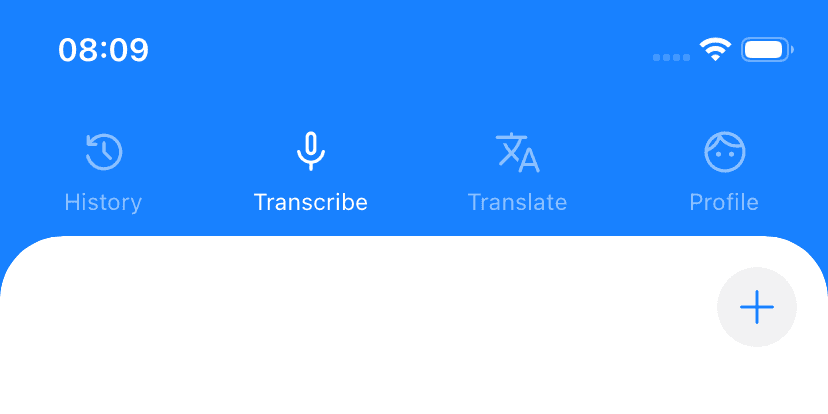
- history History: see all saved recordings. Tap one to review it.
- mic Transcribe: capture and transcribe conversations.
- translate Translate: translate conversations in real-time.
- face Profile: manage your account, view credits, and more.
Your first recording
Let's make a recording.
- Go to the mic Transcribe tab.
- Tap the mic Start button.
- Speak into the microphone. If online, your words appear as text in real-time.
- Tap Stop when finished.
- Tap the check Save button. The app automatically suggests a name. Confirm and save.
Your first recording is now in your history. Soniox will refine the transcript in the background for better accuracy.
What to try next
After your first recording, try these:
- Generate a summary or run any other AI action.
- Use live translation: open the Translation tab, pick Translate to, and see it in action.
- Translate between languages with a friend using Translate between.
- Add context to improve accuracy see: Improving accuracy.
- Manage your recordings: add tags, rename speakers, and share transcripts see: Managing.