
Using the Web App
Transcriptions
Transcriptions are the core of Soniox. Here's how to create, manage, and share them with your team.
Working with transcriptions
Recording and saving in the mobile app
- Select your organization: Open your profile in the Soniox mobile app and choose the organization where you want to save the recording. All usage is tracked under this organization.
- Record: Start recording. The app shows a live transcript (or live translation, if enabled).
- Save: When done, save the recording. Soniox processes it to create a highly accurate final transcription. It appears in your history.
Author history: your private view
New transcriptions are visible only to you. They appear in your personal history within the organization. Admins cannot see them until you share. Your history logs every transcription you create.
Moving a transcription to a project
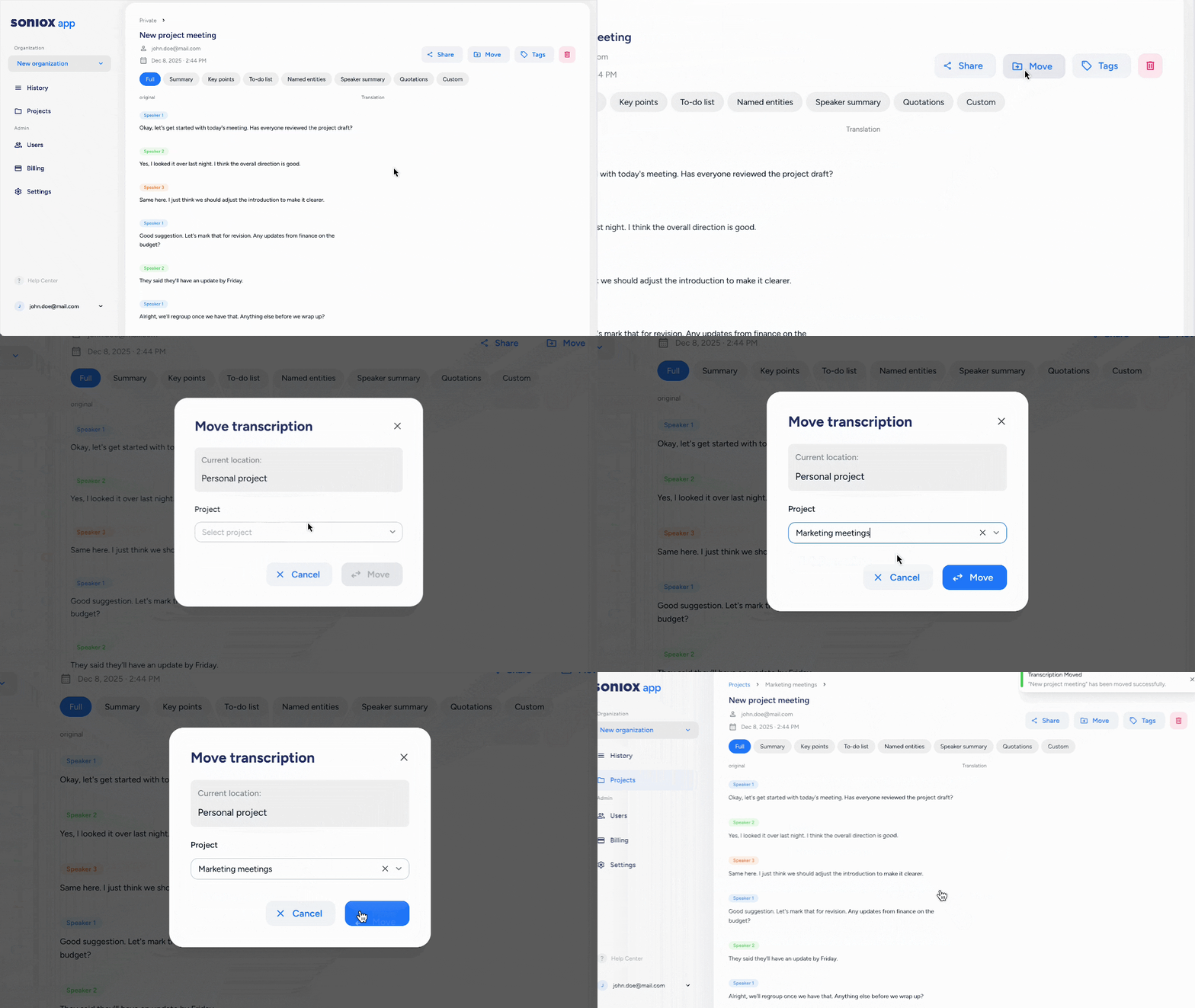
To share a transcription with your team, move it to a project:
- Open your history on the web app.
- Select "Move."
- Pick the destination project.
- All project members can view it. The author keeps access through their personal history.
Creators or admins can move transcriptions between projects. The author always retains access in history if they are part of the organization.
Transcription actions
- Share: Anyone with access can create a public link.
- Rename: Creators and admins can rename any transcription they have access to.
- Speaker labeling: Edit speaker names for clarity. Creators and admins can do this.
- AI actions: Creators can run summaries, to-do lists, or other AI actions. Viewers can see the results once generated.